


Getting Started with Quiky Chat
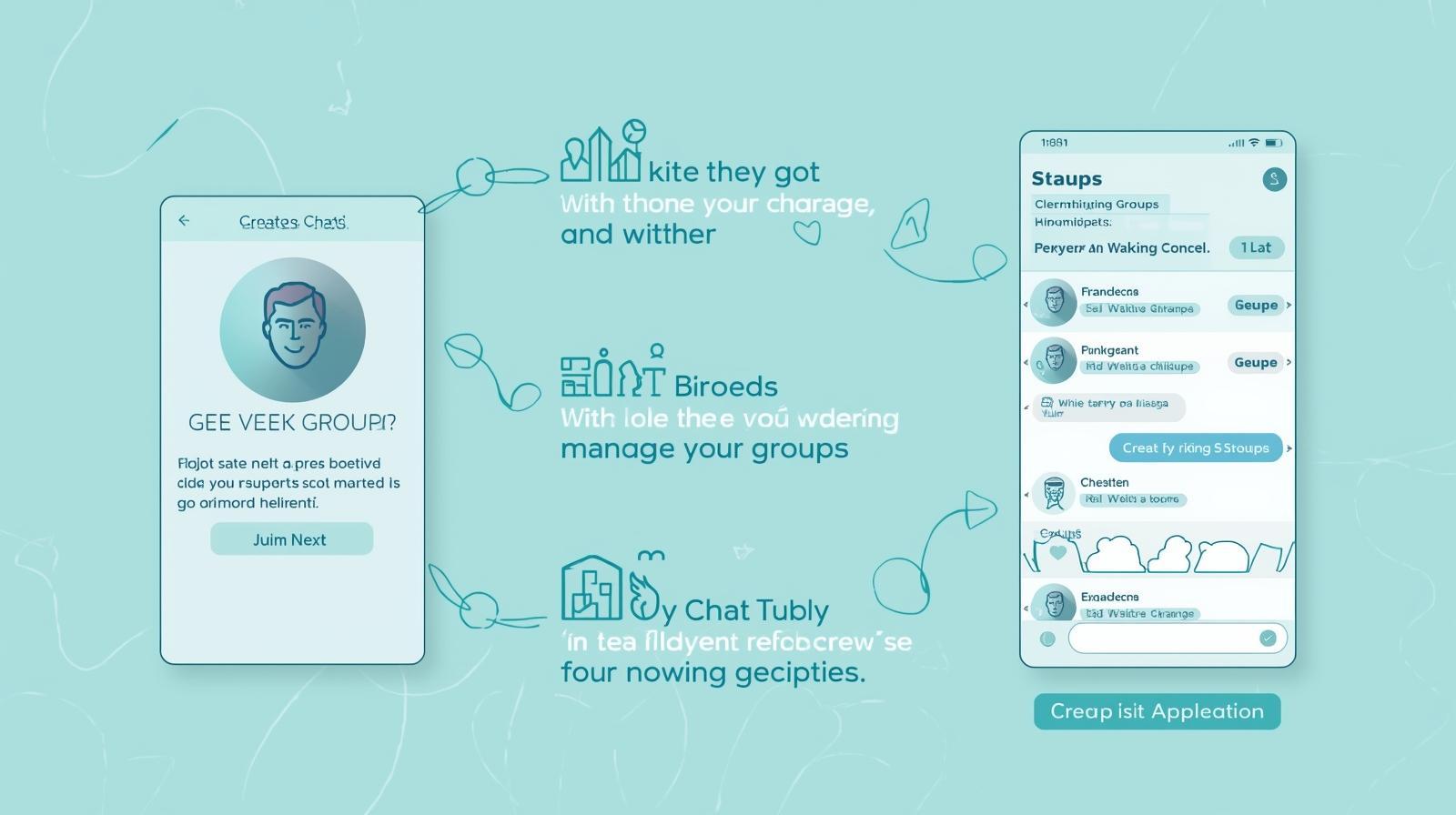
In an increasingly digital world, staying connected with friends, family, and communities has never been more important. Quiky Chat is a modern social platform built on the robust framework that makes communication seamless, intuitive, and enjoyable. Whether you're new to social networking or switching from another platform, this guide will walk you through everything you need to know to get started with Quiky Chat in just a few minutes.
What is Quiky Chat?
Quiky Chat is a feature-rich social networking application designed to help users build meaningful connections through real-time messaging, group discussions, and community engagement. Quiky Chat combines security, speed, and user-friendly design to create a social experience that puts your privacy and comfort first.
The platform offers several core features that make it stand out:
-
Instant Messaging: Send direct messages to friends with read receipts
-
Group Conversations: Create and manage groups for team projects, hobbies, or communities
-
User Profiles: Build a personalized profile showcasing your interests and information
-
Push Notifications: Stay updated with real-time alerts on messages and activities
-
Mobile-Friendly Interface: Access Quiky Chat from desktop, tablet, or smartphone seamlessly
Step 1: Creating Your Quiky Chat Account
Getting started with Quiky Chat is straightforward and takes less than two minutes:
-
Visit the Quiky Chat Website – Navigate to your Quiky Chat instance and click the "Sign Up" button
-
Enter Your Email Address – Use a valid, active email address that you check regularly
-
Create a Strong Password – Choose a password with at least 8 characters, including uppercase, lowercase, numbers, and symbols
-
Verify Your Email – Check your inbox for a verification link and click it to confirm your account
-
Complete Your Profile – Add your name, profile picture, and a brief bio describing yourself
Pro Tip: Upload a clear, professional profile picture. Users are more likely to connect with accounts that have a recognizable profile image.
Step 2: Customizing Your Privacy Settings
One of Quiky Chat's strongest features is its robust privacy controls. Before you start connecting, take a few minutes to customize your settings:
-
Profile Visibility: Decide who can see your profile (Public, Friends Only, or Private)
-
Message Permissions: Choose whether everyone can message you or only friends
-
Activity Status: Control whether others can see when you're online
-
Data & Cookies: Review what information Quiky Chat collects and adjust preferences accordingly
This transparency aligns with modern data protection standards like GDPR and ensures your personal information stays secure.
Step 3: Finding and Adding Friends
Quiky Chat makes it easy to connect with people who share your interests:
-
Search for Friends – Use the search bar to find people by username or email
-
Browse Suggestions – The platform recommends users based on common interests
-
Send Connection Requests – Click "Add Friend" to send a request
-
Accept Pending Requests – Review and accept requests from others
Once connected, you can start direct messaging immediately. The interface clearly shows which friends are currently online, making it easy to know when someone is available to chat.
Step 4: Sending Your First Message
Direct messaging is the heart of Quiky Chat. Here's how to send your first message:
-
Open Your Friends List – Click on the messaging icon in the main navigation
-
Select a Friend – Choose who you want to message
-
Type Your Message – Click in the message box and compose your text
-
Send – Press Enter or click the send button
-
Track Read Status – See when your friend has read your message with the read receipt feature
Messages are encrypted and stored securely on Quiky Chat's servers, ensuring your conversations remain private.
Step 5: Joining or Creating Groups
Groups are where Quiky Chat truly shines for community building:
To Join Existing Groups:
-
Browse the Groups directory to find communities matching your interests
-
Click "Join Group" to become a member
-
Introduce yourself in the group's welcome thread
To Create Your Own Group:
-
Click the "Create Group" button
-
Name your group and write a clear description
-
Set privacy settings (Public or Private)
-
Invite friends to join
-
Set group rules to maintain a positive environment
Groups can have up to 10,000 members, making them ideal for large communities, hobby clubs, professional networks, or family coordination.
Understanding Notifications
Quiky Chat's notification system keeps you informed without overwhelming you:
-
Push Notifications: Real-time alerts for direct messages and group mentions (customizable)
-
Email Digests: Optional daily or weekly summaries of activity
-
Do Not Disturb: Schedule times when you don't want notifications
-
Selective Alerts: Choose which friends' messages trigger notifications
You control everything—Quiky Chat respects your attention and time.
Staying Safe on Quiky Chat
Security is paramount on any social platform. Follow these best practices:
-
Never Share Personal Information – Avoid posting addresses, phone numbers, or financial details publicly
-
Use Strong Passwords – Create unique passwords and change them every 90 days
-
Report Suspicious Activity – Use the report feature for spam, harassment, or inappropriate content
-
Enable Two-Factor Authentication – Add an extra security layer to your account
-
Verify Requests – Be cautious of connection requests from unknown users
Quiky Chat's moderation team actively monitors the platform and removes harmful content within 24 hours.
Quiky Chat offers a modern, secure, and intuitive way to stay connected with the people who matter most. By following this beginner's guide, you're now equipped to create an account, customize your settings, add friends, and start messaging. Whether you're reconnecting with old friends or building a new community, Quiky Chat provides the tools and safety features to make your experience positive and productive.
Start your Quiky Chat journey today and discover why thousands of users trust it for their social networking needs.

 Arabic
 French
 Spanish
 Portuguese
 Deutsch
 Turkish
 Dutch
Dutch
 Italiano
 Russian
 Romaian
 Portuguese (Brazil)
 Greek
Greek
